
likes


26 Dec 2016


10 Nov 2014
4 May 2014
Samsung B7510 Hard Reset
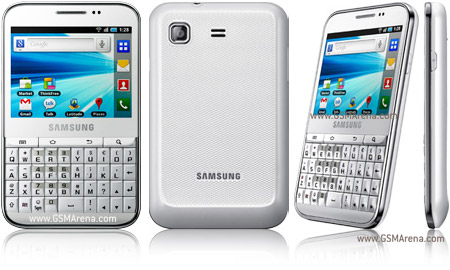
Samsung B7510 Hard Reset
- Press and hold the “Power/Lock key” and “T” key of the QWERTY keyboard at the same time until the “Android system recovery” menu shows up.

- Use the “Volume key” to scroll down and select “wipe data/factory reset”

- Press the “Home key” to proceed to the next confirmation step.

- Use the “Volume key” again to scroll down and select “Yes — delete all user data”
- Press the “Home key” to perform hard reset. All user data will be removed and the device will be restored to manufacture default.
- Press the “Home key” to reboot system.
Apple logo creation in Adobe photoshop CS5.
Today, I’m going to show you how use shapes and Layer styles in Photoshop CS5 to design a cool Apple WWDC logo. You will learn an idea to make a nice logo by following this and you will find not many technical skills will be involved. Layered PSD file included. Let’s get started!
 Start working by creating a new document (Ctrl+N) in Adobe Photoshop CS5 with the size 1920px by 1200px(RGB color mode) at a resolution of 72 pixels/inch. Use the Paint Bucket Tool (G) to fill with #120807 color the new background layer.


Apply Gradient Overlay:

 Set the Blending mode for this layer to Hard Light.


Remove now the layer containing the logo’s contours.

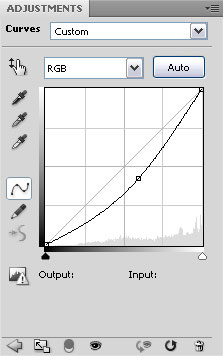
Click Create new fill or adjustment layer from bottom part of the Layers panel and click to Curves to adjust the curve shape as shown to make a little color corrections.


Final Image Preview
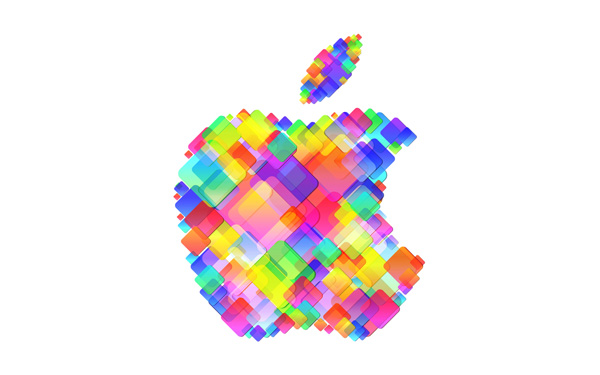
Find an Apple logo in .PNG format and place it on the main document, I used this file. If necessary, we may enlarge it, applying the Free Transform (Ctrl+T) command.
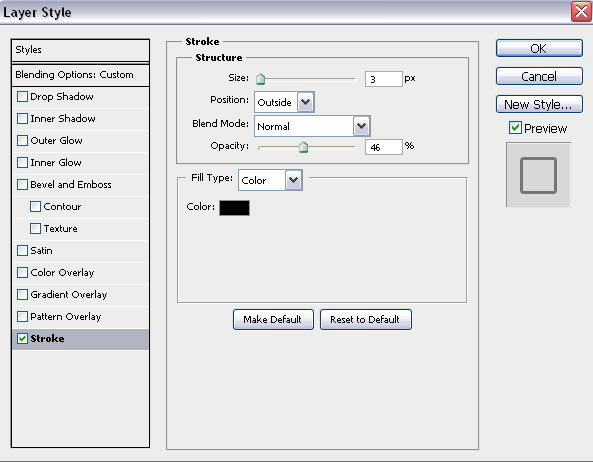
Set Fill to 0% for this layer and click on Add a layer style icon from bottom part of the Layers panel to selectStroke. Apply the next settings:
We’ve got the next result:
We’ve got the logo’s contour. Now we’ll add on it the next square. In this case choose the Rounded Rectangle Tool (U), set Radius to 15px in Options bar, hold Shift button and draw the next square as shown. Select after that the Free Transform (Ctrl+T) command and turn around the square on 45 degrees.
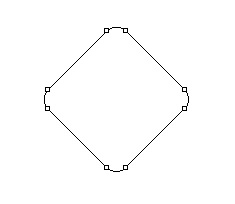
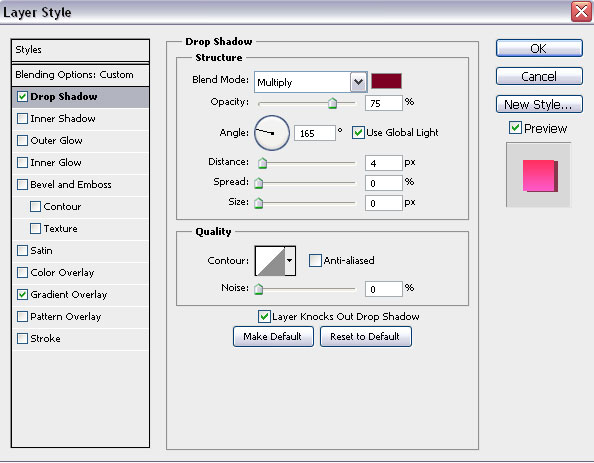
Set Fill to 0% for this layer and click on Add a layer style icon from bottom part of the Layers panel to selectDrop Shadow.
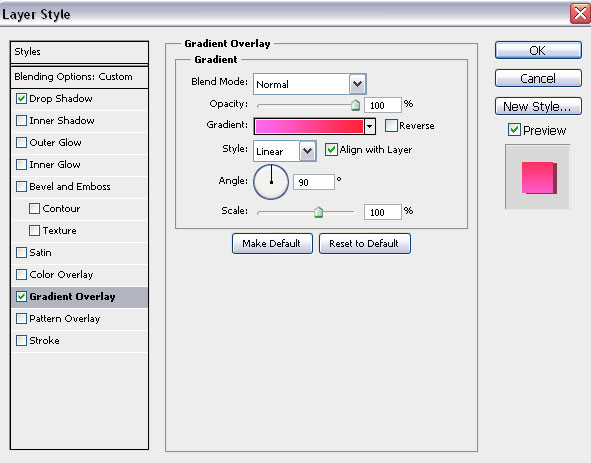
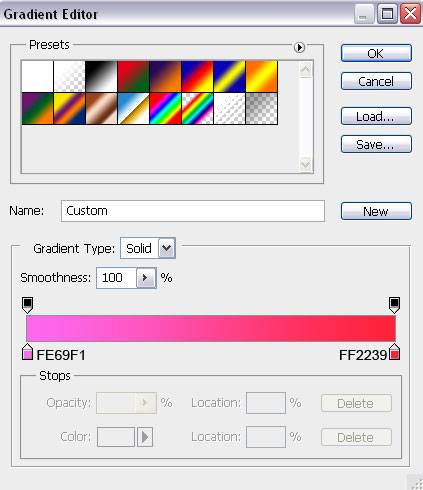
Click in the color bar to open the Gradient Editor and set the color stops as shown. Click OK to close theGradient Editor dialog box.

We’ve got the next result:
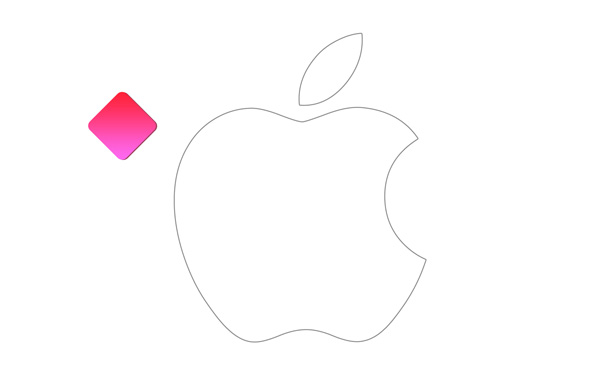
We have to rasterize the new layer by creating a new one above the layer containing our square, select both layers in Layers panel and press then CTRL+E to Merge Down. Using the Move Tool (V), we may situate the square inside the logo’s contour. When use Move Tool (V) hold Alt button and click on the square to make some copies. Change the copies’ sizes applying the Free Transform (Ctrl+T) command.
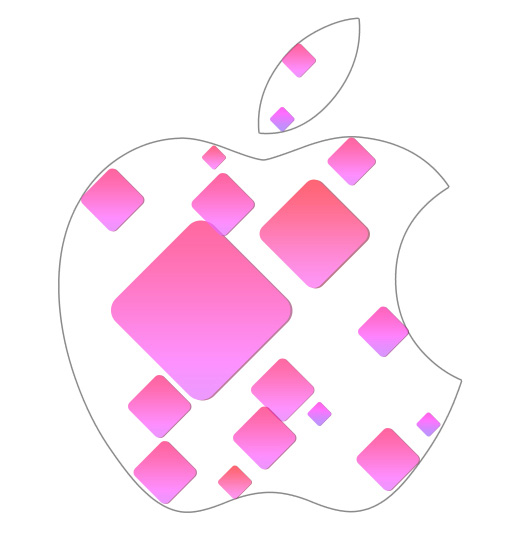
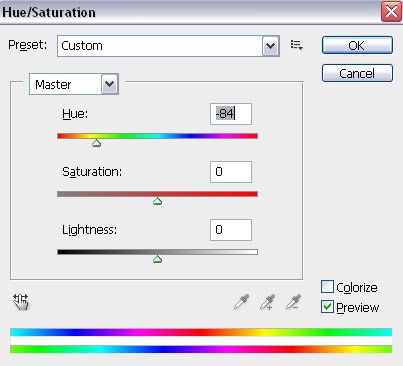
On the copies’ layers we’ll apply a different Fill values. Change also the square’s color. In this case make a copy of the square (choose the Move Tool (V) hold Alt button to displace the copy). Then press CTRL+U, in the dialog box of Hue/Saturation, drag the slider to the left to decrease the Hue of the color range.
Make some copies of the square and place the copies as shown:
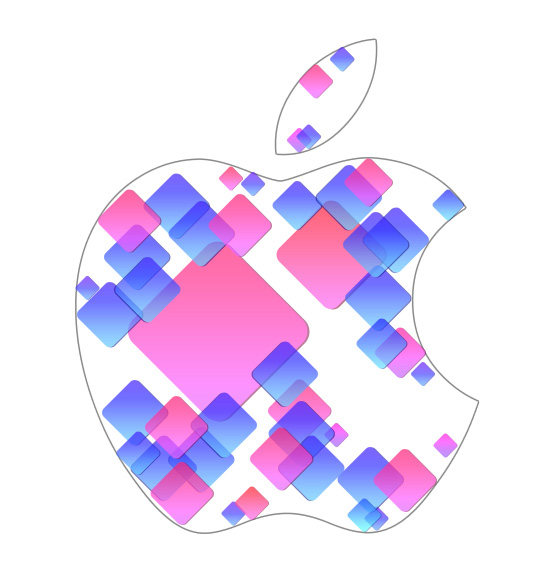
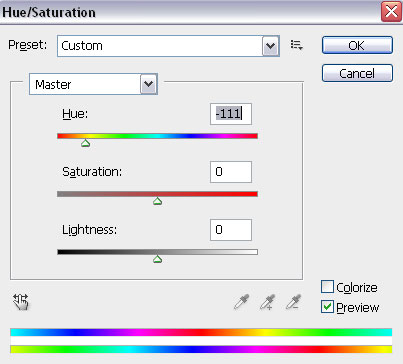
Continue representing the squares. Change the color again using Hue/Saturation command and multiply the copies the way described before.
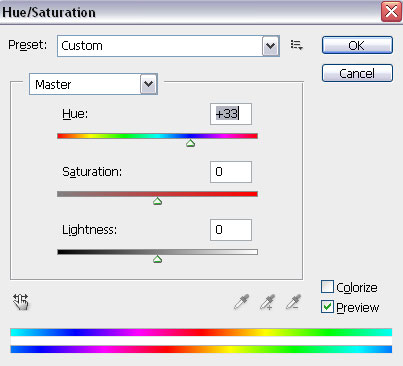
We’ve got the next result:

The layers containing the square we should place one by one. Then we should make again a copy of the very first layer (choose the Move Tool (V), hold Alt button to displace the copy). Change the color of the square usingCTRL+U (Hue/Saturation) command.
Multiply the copies the way described before.
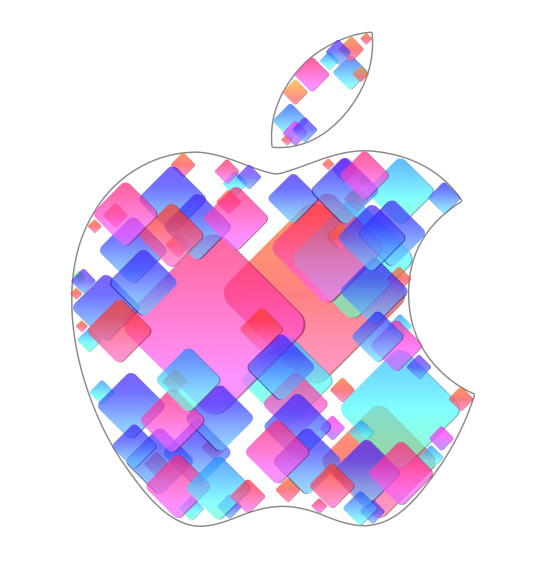
On the central part of the logo, we’ll insert many other multicolored squares of a bigger size. Apply differentOpacity value on the layers and choose also different Blending mode like Overlay, Hard Light, Soft Light. Change the squares’ sizes, using the Free Transform (Ctrl+T) command.
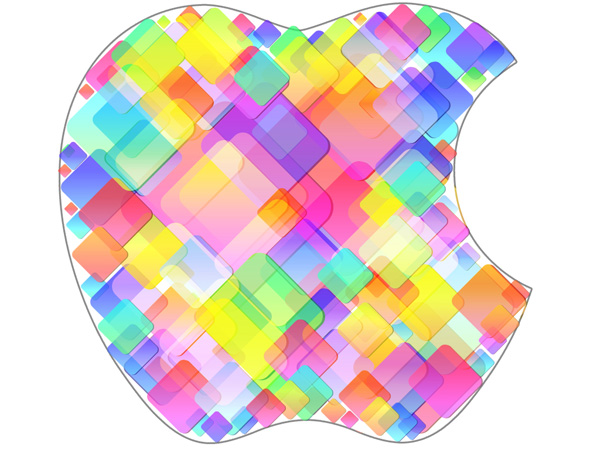
Remove now the layer containing the logo’s contours.
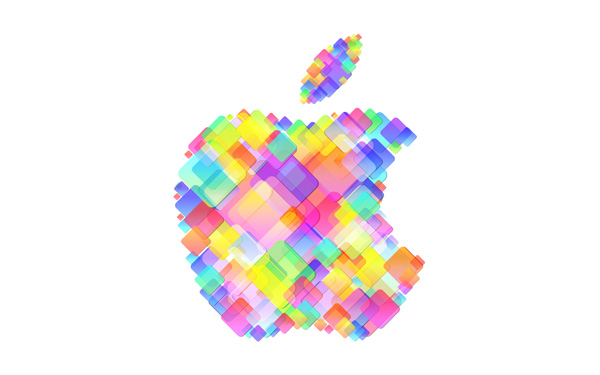
We’ve got the next result:
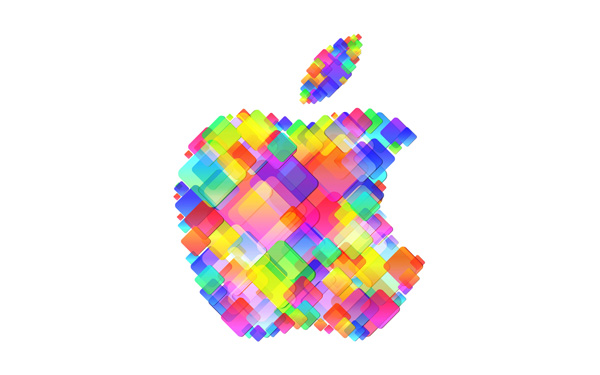
We’re done!
Download freeLayered PSD file.
11 Mar 2014
Google Open Doors to Its Top-Secret Data Center
If you’re looking for the beating heart of the digital age —
a physical location where the scope, grandeur, and geekiness of the kingdom of
bits become manifest—you could do a lot worse than Lenoir, North Carolina. This
rural city of 18,000 was once rife with furniture factories. Now it’s the home
of a Google data center.
Engineering prowess famously catapulted the 14-year-old search giant
into its place as one of the world’s most successful, influential, and
frighteningly powerful companies. Its constantly refined search algorithm
changed the way we all access and even think about information. Its equally
complex ad-auction platform is a perpetual money-minting machine. But other, less
well-known engineering and strategic breakthroughs are arguably just as crucial
to Google’s success: its ability to build, organize, and operate a huge network
of servers and fiber-optic cables with an efficiency and speed that rocks
physics on its heels. Google has spread its infrastructure across a global
archipelago of massive buildings—a dozen or so information palaces in locales
as diverse as Council Bluffs, Iowa; St. Ghislain, Belgium; and soon Hong Kong
and Singapore—where an unspecified but huge number of machines process and
deliver the continuing chronicle of human experience.

This is what
makes Google Google: its physical network, its thousands of fiber miles, and
those many thousands of servers that, in aggregate, add up to the mother of all
clouds. This multibillion-dollar infrastructure allows the company to index 20
billion web pages a day. To handle more than 3 billion daily search queries. To
conduct millions of ad auctions in real time. To offer free email storage to
425 million Gmail users. To zip millions of YouTube videos to users every day.
To deliver search results before the user has finished typing the query. In the
near future, when Google releases the wearable computing platform called Glass,
this infrastructure will power its visual search results.
The problem for would-be bards attempting to sing of these
data centers has been that, because Google sees its network as the ultimate
competitive advantage, only critical employees have been permitted even a peek
inside, a prohibition that has most certainly included bards. Until now.
Here I am, in
a huge white building in Lenoir, standing near a reinforced door with a party
of Googlers, ready to become that rarest of species: an outsider who has been
inside one of the company’s data centers and seen the legendary server floor,
referred to simply as “the floor.” My visit is the latest evidence that Google
is relaxing its black-box policy. My hosts include Joe Kava, who’s in charge of
building and maintaining Google’s data centers, and his colleague Vitaly
Gudanets, who populates the facilities with computers and makes sure they run
smoothly.

Urs Hölzle had never stepped into a data center before he
was hired by Sergey Brin and Larry Page. A hirsute, soft-spoken Swiss, Hölzle
was on leave as a computer science professor at UC Santa Barbara in February
1999 when his new employers took him to the Exodus server facility in Santa
Clara. Exodus was a colocation site, or colo, where multiple companies rent
floor space. Google’s “cage” sat next to servers from eBay and other blue-chip
Internet companies. But the search company’s array was the most densely packed
and chaotic. Brin and Page were looking to upgrade the system, which often took
a full 3.5 seconds to deliver search results and tended to crash on Mondays.
They brought Hölzle on to help drive the effort.
It wouldn’t be easy. Exodus was “a huge mess,” Hölzle later
recalled. And the cramped hodgepodge would soon be strained even more. Google
was not only processing millions of queries every week but also stepping up the
frequency with which it indexed the web, gathering every bit of online
information and putting it into a searchable format. AdWords—the service that
invited advertisers to bid for placement alongside search results relevant to
their wares—involved computation-heavy processes that were just as demanding as
search. Page had also become obsessed with speed, with delivering search
results so quickly that it gave the illusion of mind reading, a trick that
required even more servers and connections. And the faster Google delivered
results, the more popular it became, creating an even greater burden.
Meanwhile, the company was adding other applications, including a mail service
that would require instant access to many petabytes of storage. Worse yet, the
tech downturn that left many data centers underpopulated in the late ’90s was
ending, and Google’s future leasing deals would become much more costly.
26 Nov 2013
22 Nov 2013


21 Nov 2013


GUAR FORUM BLOG - Best Informed Blog in iDevices and GSM: 100% Free! Cellphone Repair Tutorials for beginner...
GUAR FORUM BLOG - Best Informed Blog in iDevices and GSM: 100% Free! Cellphone Repair Tutorials for beginner...: Want to learn cellphone repair and become a Pioneer like Masters and Experts? Learn the basics and advance troubleshooting techniques withou...
20 Nov 2013
19 Nov 2013
6 Jul 2013
paper speaker
WebSofiyan
 |
paper speaker imagePaper speaker making پیپر سے اسپیکر بنانا
پیپر سے اسپیکر بنانے کیلئے ھمیں ایک جھیلی دار کاغز کو گول تراش لیں جیسا کے تصویر میں دیکھایا گیا ھے اب اسکے
بعد پتلے تانبا کے تار سے اس پیپر پر گول گول گھومانے کی کوشش کریں جب وھ پورا کوائل کا شقل اختیار کر لے تو اسکے وپر سیلو ٹیپ
چپکا دے
اسکے بعد ایک چمبک لیکر کوئل کے پیچھے چپکا دے اور اسکے دونو تار کو + اور - کر کے اسے بجانے کی کوشش کرے
امید ھے کی آپ اسے ؐزرور آزمائں گے
|
Subscribe to:
Posts (Atom)